

Can the Built-In USB-C Port in a Wall Outlet Fast-Charge Your Laptop?

Quick answer
A built-in USB-C port can fast-charge a compatible laptop when four parts agree: the laptop accepts charging through that USB-C port, the outlet advertises a power profile the laptop can request, the cable supports that power, and the outlet still provides the needed profile in the way you are using its other port. USB Power Delivery manages this as a source-and-device negotiation; the laptop chooses from the source capabilities the outlet offers.[1]
Do not use connector shape, “65 W,” or a 20 V line as a stand-alone pass/fail test. USB-C is the connector ecosystem, while USB Power Delivery is the power protocol.[2] The correct check is model-specific: compare the laptop manufacturer's charging input with the outlet's complete voltage/current list, then use a suitably rated USB-C cable.
The key points:
- Confirm that the laptop's port accepts power. Some USB-C ports carry data or video without accepting charging.
- Compare profiles, not only watts. A 65 W maximum does not help when the laptop cannot request one of the source's published voltage/current combinations.
- Treat the cable as part of the power path. A cable rated below the requested power can lower the negotiated result or prevent the expected charging mode.
- Check the exact use state. A second connected device may change available output; the allocation is set by the outlet model.
- Charging and workload happen together. “Slow charger,” a flat battery percentage, or gradual battery loss can mean the laptop is using most or all of the negotiated power.
- Keep the AC receptacle and USB port distinct. A wall outlet can always power the laptop's original AC adapter; this article asks whether the outlet's built-in USB-C charging port can replace that adapter for a given laptop.
Use this four-part compatibility check
Work from the laptop toward the wall. That order avoids buying a high-output USB-C outlet before confirming what the computer can accept.
| Check | What to verify | A passing result |
|---|---|---|
| 1. Laptop input | The specific USB-C port supports charging, and the manufacturer lists accepted input power or a compatible USB-C adapter | The laptop documentation explicitly supports USB-C charging |
| 2. Outlet source profiles | The product page lists USB Power Delivery and voltage/current pairs | At least one published profile matches a profile the laptop can request |
| 3. Cable capability | The cable is USB-C to USB-C and rated for the required charging power | Cable rating meets or exceeds the planned contract |
| 4. Active port allocation | Output with the other USB port empty or occupied | The required profile remains available in the actual use state |
A failure at any row changes the outcome. If the laptop's USB-C port is data-only, no outlet or cable can turn it into a charging input. If the outlet offers less power than the computer requests, the laptop may reject the source, show a low-power warning, charge slowly, or use battery during heavier work. Those behaviors are controlled by the laptop design, so no single result applies to every model.
The same rule applies when search results describe a wall outlet with usb fast charging, a usb c outlet, or a usb pd charger. Those phrases are useful category labels. Compatibility still comes from the laptop input, source profiles, cable rating, and simultaneous-use behavior.
Check the laptop before comparing outlets
Start with the laptop manufacturer's specifications or support page for the exact model. Look for “USB-C charging,” “Power Delivery,” “power input,” or a supported adapter list. A USB-C symbol beside a port can indicate data, display, charging, or a combination; the computer documentation is the authority for which functions that port accepts.
The supplied AC adapter offers a useful planning reference, but its printed wattage is not a universal minimum. Manufacturers size adapters for battery charging plus expected system load, and some computers can accept lower-power sources with reduced performance or slower charging. Others enforce a narrower input range. Use the original adapter rating to identify the class of source to investigate, then confirm the accepted USB-C input in the laptop documentation.
A practical reading order is:
- Does this exact USB-C port accept charging? Multi-port laptops may assign different functions to different ports.
- What USB-C adapter does the manufacturer specify? Record its wattage and any listed voltage/current output.
- Does the laptop permit lower-power charging? The manual or support page may state whether a warning or reduced-performance mode is expected.
- Will the laptop be charged while asleep, during light work, or under sustained load? The required margin changes with the use case.
This prevents the most common category error: assuming that every laptop with a USB-C connector can be charged through it. The connector is necessary for this method, but the laptop's internal charging design decides whether it is an input.

Match the laptop to the outlet's published profiles
USB Power Delivery lets a source describe the power levels it can provide and lets the connected device request a supported option.[1] The source does not force its maximum power into the laptop. A 65 W port can safely serve a lower-power device because the device requests an agreed level.
Current USB Power Delivery covers a wider range than the familiar phone and laptop classes: USB-IF says Revision 3.1 extended the system to 240 W and added fixed voltages above 20 V for Extended Power Range applications.[1] That does not make every USB-C outlet an EPR source. Read the profiles printed for the exact product.
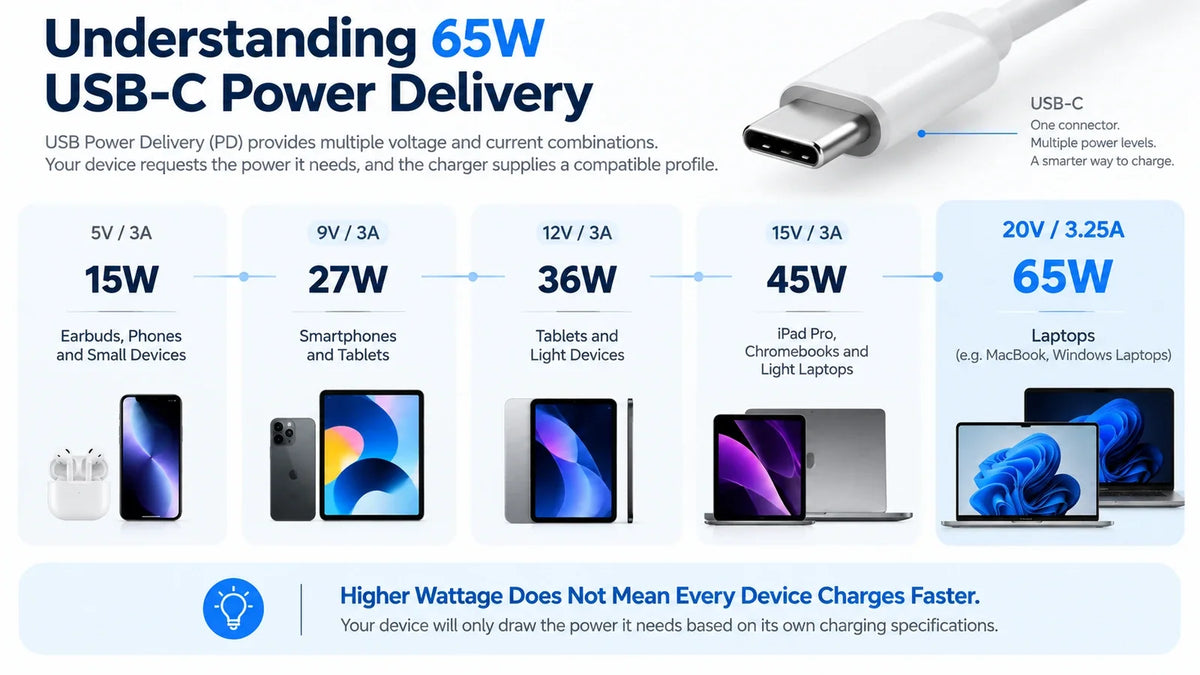
ELEGRP's 65 W dual-USB-C outlet publishes this source list:[3]
| Published profile | Arithmetic ceiling | What it establishes |
|---|---|---|
| 5 V/3 A | 15 W | A 5 V USB-C charging option |
| 9 V/3 A | 27 W | A higher-voltage option used by compatible mobile devices |
| 12 V/3 A | 36 W | An additional model-specific source option |
| 15 V/3 A | 45 W | A mid-power USB-C option |
| 20 V/3.25 A | 65 W | The product's published maximum profile |
These rows establish what the source offers. They do not establish what a particular laptop will request. A computer that accepts one of those profiles can form a suitable contract; a computer designed around a different requirement may not. This is why “20 V means laptop charging” is too broad. The accepted voltage, current, and power belong to the laptop model, and all three need to fit within the source profile.
For a laptop that ships with a 100 W or higher adapter, a 65 W built-in port may still be useful for travel, overnight charging, or light work if the manufacturer permits a lower-power source. It should not be described as a full replacement until the laptop documentation confirms that behavior.
Choose a cable that can carry the planned contract
A USB-C cable is an active compatibility decision, not a decorative accessory. Cable assemblies identify their capabilities within the USB Type-C ecosystem, and USB-IF ties higher Power Delivery levels to cables designed for those levels.[1][2]
For the published 65 W maximum above, the source profile is 20 V/3.25 A.[3] That exceeds the 60 W arithmetic ceiling of 20 V at 3 A, so a cable sold only for 60 W charging is not the right choice when the goal is the full 65 W profile. Use a reputable USB-C-to-USB-C cable explicitly rated for at least the power you plan to negotiate, and follow any cable requirement in the laptop documentation.
Cable troubleshooting should stay simple:
- Use a direct USB-C-to-USB-C connection with no hub, dock, magnetic tip, or adapter during diagnosis.
- Try the cable supplied or recommended for the laptop, when available.
- Replace a damaged cable or one with no visible power rating before blaming the outlet.
- Confirm that both plugs are fully seated; a case or port cover can prevent complete insertion.
A cable can support high charging power without supporting every data speed, and a high-speed data cable does not automatically communicate a high charging rating to the buyer. Read the power marking or manufacturer specification for the cable itself.
Confirm what happens when the second port is used
Dual ports introduce one more source state. Some chargers share a fixed total dynamically, some assign a defined profile to each port, and some reduce both ports to lower profiles. The behavior must come from the exact product documentation; dividing the headline number by two is not a reliable method.
For the ELEGRP 65 W model, the current product page confirms two USB-C ports and a 65 W maximum output profile, but the technical-specification table presents one USB output list rather than a separate two-port allocation table.[3] Plan laptop charging around the documented 65 W maximum with one active charging connection, and confirm the current model documentation before relying on a specific laptop-plus-phone allocation.
A comparison with ELEGRP's 30 W dual-C model shows why this check matters. That product page explicitly lists either USB-C port at up to 30 W when used alone and both ports at 5 V/3 A each when used together.[4] The second connection changes the available profile. The same question needs an explicit answer for any multiport outlet used as a laptop source.

For a desk where the laptop must charge predictably, leave the second USB-C port unused unless the two-port allocation has been verified. A phone can still use an AC charger in the adjacent receptacle without changing the built-in USB source allocation.
Interpret slow charging without guessing
A charging symptom describes the whole chain, not one component. Use the observation to decide what to check next.
| What you see | Likely categories to check | Next action |
|---|---|---|
| No charging icon or connection response | Data-only laptop port, unsupported source profile, damaged or incompatible cable, incomplete insertion | Confirm the laptop charging port, then retry with the recommended cable |
| “Slow charger” or low-power warning | Negotiated power is below the laptop's preferred adapter class | Compare the active source profile with the manufacturer's stated input |
| Battery rises while asleep but barely moves during work | The system is using much of the incoming power | Reduce workload for a test and check whether the battery then gains |
| Battery percentage stays level | Incoming power is close to current system demand | Check the negotiated source class and repeat under a lighter workload |
| Battery falls while plugged in | System demand exceeds incoming power, or charging is being limited | Use the original adapter for heavy work and verify cable/source compatibility |
| Charging changes when a phone is connected | The outlet changes allocation with simultaneous use | Find the model's two-port specification or keep the laptop connection separate |
These are diagnostic categories, not universal promises about how every computer behaves. Laptop firmware may display a warning, reduce performance, accept a lower contract silently, or reject it. The manufacturer's support information remains the deciding source for that model.
Check the electrical-box fit and installation boundary
A built-in USB-C charger occupies more box space than a plain duplex receptacle because the AC-to-DC supply is inside the device. ELEGRP lists the 65 W model at 4.17 × 1.74 × 1.74 inches and offers 15 A/NEMA 5-15R and 20 A/NEMA 5-20R versions.[3] Measure the existing box and account for the conductors already inside it before treating the model as a drop-in replacement.
Match the receptacle rating to the branch circuit. Turn off the breaker and verify that the conductors are de-energized before removing the existing device. If the circuit rating, grounding, conductor condition, or box capacity is unclear, use a licensed electrician. Local adoption and amendments determine the code edition enforced by the authority having jurisdiction.
ELEGRP's 65 W USB-C wall outlet places both USB-C ports above the AC receptacles, so a larger AC plug is less likely to block the charging connections. The page also lists a screwless wall plate, tamper-resistant construction, back and side wiring, 15 A and 20 A variants, and UL/cUL listing.[3] ELEGRP's broader USB charging range at store.elegrp.com includes 30 W and 65 W options. Choose within that range using the same four checks: laptop input, source profiles, cable capability, and active port allocation.
Frequently asked questions
Can the built-in USB-C port in a wall outlet fast-charge every laptop?
No. The laptop must accept charging through that USB-C port and support one of the source's published Power Delivery profiles. Cable capability and simultaneous port use must also fit the planned contract. Check the exact laptop manual and outlet specification instead of treating USB-C shape or a wattage label as universal compatibility.
Is 20 V enough to prove that a USB-C outlet will charge my laptop?
No. A 20 V profile is useful evidence, but the laptop must accept that specific voltage/current combination and the available power must suit its charging design. ELEGRP's 65 W model lists 20 V/3.25 A as its maximum profile.[3] Compare that complete pair with the laptop manufacturer's input requirements.
Can a 30 W USB-C outlet charge a laptop?
It depends on the laptop. ELEGRP's 30 W dual-C model lists 20 V/1.5 A when one port is used alone.[4] A laptop that explicitly accepts that profile may charge, often with less margin during use than it has with its original adapter. Some laptops will warn, limit performance, or reject the source. The model documentation decides.
Does the original laptop charger wattage have to match exactly?
Not always. The original adapter rating is a useful indication of the power class the manufacturer designed around, but some laptops accept lower-power USB-C sources and others impose stricter limits. Confirm the supported USB-C input rather than assuming any source at or below the original wattage will work.
Why does my laptop charge slowly from a 65 W USB-C port?
Check the active USB-C port on the laptop, the negotiated source profile, the cable rating, the battery temperature and state of charge, and whether a second device changed the outlet allocation. A 65 W label is the source ceiling. The laptop may request less, and its current workload may consume most of what arrives.
Do I need a special cable for 65 W charging?
Use a USB-C-to-USB-C cable explicitly rated for at least 65 W and compliant with the laptop manufacturer's requirements. The ELEGRP outlet's maximum profile is 20 V/3.25 A, above the 60 W arithmetic ceiling at 20 V/3 A.[3] A cable sold only for 60 W is therefore not the right choice for pursuing the full profile.
The bottom line
A built-in USB-C port can replace a laptop's charger brick only after four checks pass: the laptop accepts USB-C charging, the outlet offers a profile the laptop supports, the cable carries the required power, and the active port allocation preserves that profile.
Start with the laptop documentation, then compare the outlet's voltage/current table. That order gives a defensible answer for one specific computer and avoids the two shortcuts that cause most confusion: treating every USB-C port as a USB PD charger and treating 20 V as a universal laptop guarantee.


